One device or one room
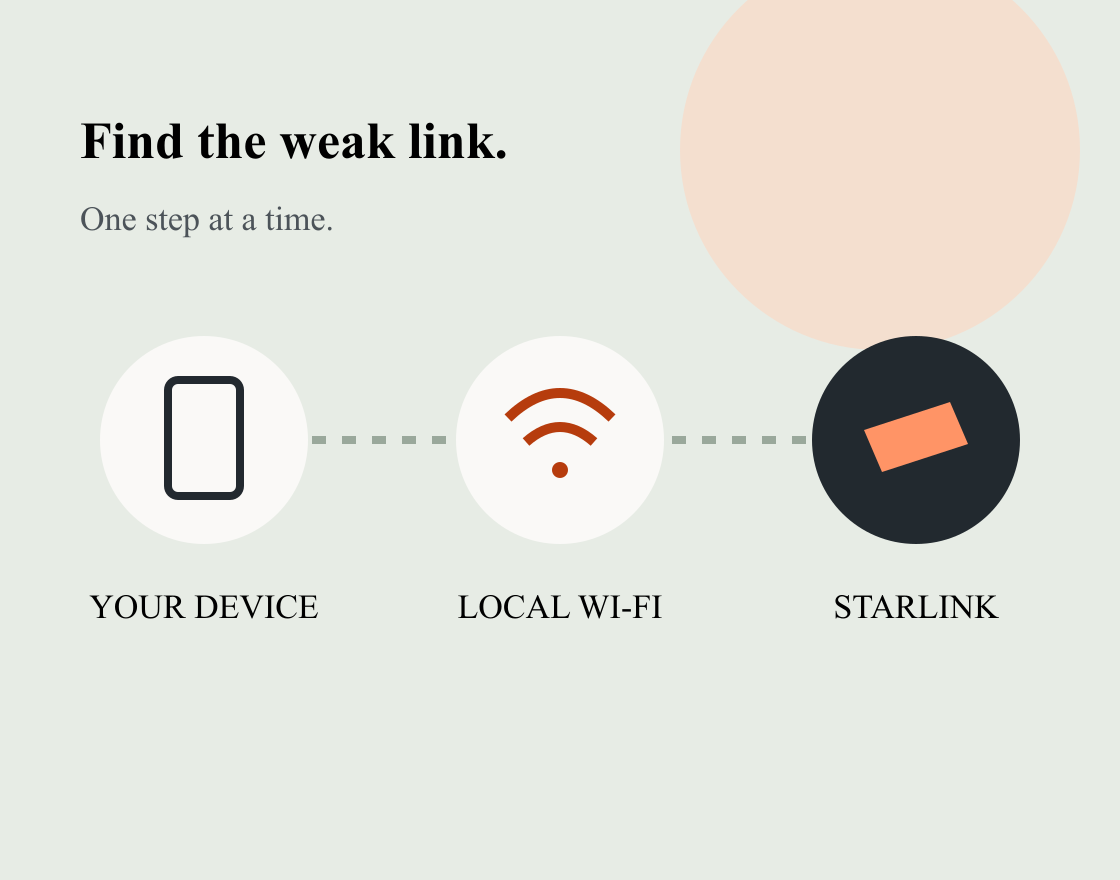
Try another device near the router. If that works, start with the affected device or Wi-Fi coverage rather than assuming the satellite link has failed.
STARLINK / WHEN YOU NEED A HAND
Start with the symptom, not a shopping list. These practical checks help you separate a local Wi-Fi problem from a Starlink service issue—and get useful evidence to the right support team.
Independent Seekstead guide · Australia
Provider facts checked 23 September 2026
START HERE
Try another device near the router. If that works, start with the affected device or Wi-Fi coverage rather than assuming the satellite link has failed.
Open the Starlink app and record its exact alert. Check power safely, then follow the provider’s guidance for that alert and your hardware.
Check the app’s obstruction and outage information. Note the time, weather and whether the problem follows a particular location or activity.
Seekstead is an independent guide, not Starlink support. We cannot see your account, restore service or approve replacements. Do not send us passwords or account recovery codes.
WORK THROUGH IT
Connect to your Starlink Wi-Fi where possible. The provider’s offline guide explains switching the app to the local connection if needed. Capture the alert and check for account or service notices.
Look for disconnected power or visible damage. Do not open a power supply, handle damaged equipment or climb onto a roof to investigate. Stop and get qualified help when the problem is unsafe.
Use Starlink’s procedure for your kit. Mini’s integrated hardware and third-party-router installations need different handling. Avoid repeated power cycling or a factory reset as a guess.
New branches, a moved terminal or heavy weather can change the connection. Use app obstruction information; only inspect or relocate equipment where it is safe.
A LITTLE MORE DIAGNOSIS
Joining Wi-Fi proves a local radio connection, not a working internet service. Check the app’s Starlink status and alerts. If every device is affected, follow that service alert before changing each device’s settings.
Compare the same device close to the router and in the affected room. Walls, distance and local interference can change Wi-Fi performance. Separate that result from a service-speed test before buying a new kit or plan.
Check the new sky view and your plan’s permitted location. A kit that worked yesterday can have a different obstruction pattern today. Check Roam’s travel permissions →
Only when the current provider procedure for your exact problem calls for it. A reset can remove local configuration and create extra work; it cannot fix an obstructed sky or an inactive service. Preserve useful settings and evidence first.
MAKE SUPPORT MORE USEFUL
Use Starlink’s official Help Centre and signed-in support route. Prepare a short record so the next step can be specific:
Do not post your account identifiers, home address or diagnostic files publicly. Starlink may offer different support channels by region or issue; check its current page rather than relying on an old phone number.
Open official Starlink support ↗YOUR NEXT USEFUL STEP
A better setup may be all you need. If you are still choosing a service, our Starlink overview connects the hardware, plan and ownership questions.
KEEP EXPLORING
Provider facts were checked on 23 September 2026. Prices, plans, permissions and terms can change; confirm the exact offer and requirements with the provider before ordering or travelling. This guide is a research-based explanation, not a field-test result or an individual installation assessment.